🔥 Design Webflow sites with AI


The democratization of web design has opened doors for creative professionals who think visually rather than syntactically.
.jpg)
Webflow's built-in slider component supports autoplay, swipe gestures, navigation arrows, pagination dots, and basic fade or slide transitions out of the box. But it hits a ceiling fast when you need CMS integration, advanced animations, draggable carousels, or flexible layout configurations. That gap between what the native slider offers and what professional projects demand is exactly where no-code third-party solutions come in.
This guide covers what the Webflow slider component can and cannot do, walks through the complete no-code implementation process from planning to responsive testing, and shows where tools like Goatslider extend native capabilities without requiring a single line of JavaScript. Whether you are a designer, marketer, or entrepreneur building in Webflow, these are the slider features and limitations you need to understand before choosing your approach.
The no-code movement represents more than simplified interfaces. It embodies a philosophical shift toward visual development paradigms that align with how designers naturally think. Rather than translating visual intentions into code syntax, no-code tools allow direct manipulation of visual outcomes.
Slider implementation within this paradigm means working with pre-built components, visual customization interfaces, and intuitive configuration options. The underlying code still exists, but it operates invisibly, managed by the platform rather than the user.
Modern no-code slider solutions have reached capability parity with custom-coded implementations for most use cases. Full-screen hero sliders with sophisticated transitions, multi-item carousels with touch navigation, CMS-connected dynamic galleries, and responsive designs that adapt across devices all fall within reach of no-code approaches.
The limitations that remain tend to involve highly specialized interactions or performance optimizations for extreme edge cases. For the vast majority of professional website projects, no-code sliders deliver everything clients need and expect.
Webflow occupies a unique position among no-code platforms, offering visual development capabilities that approach the flexibility of custom code while maintaining accessibility for non-developers. The platform's native slider component provides basic functionality, while its ecosystem of third-party applications extends capabilities significantly.
This ecosystem approach matters for slider implementation. Native Webflow sliders handle simple use cases adequately, but professional projects often require capabilities beyond basic functionality. Third-party applications fill this gap, providing advanced features through the same visual interface paradigm that makes Webflow accessible.
Beginning with no-code sliders requires understanding the available options and selecting approaches appropriate to your specific needs. The choice between native components and third-party solutions depends on project requirements, desired features, and comfort level with different interfaces.
Before selecting tools, clarify what your slider needs to accomplish. Consider content type: will the slider display static content, CMS-driven dynamic content, or a combination? Think about interaction requirements: do users need to swipe on mobile, click navigation arrows, or both? Assess visual requirements: what transition effects support your design vision?
These questions guide tool selection more effectively than abstract feature comparisons. A slider displaying three static promotional banners has different requirements than a portfolio gallery pulling from a CMS collection with dozens of projects.
Webflow's built-in slider component provides fundamental carousel functionality through the visual designer. Adding a slider involves dragging the component onto the canvas, populating slides with content, and configuring basic settings through the component panel.
Native sliders support essential features including navigation arrows, pagination dots, autoplay with configurable timing, and swipe gestures on touch devices. Styling flexibility allows customization of colors, sizes, and spacing through the familiar Webflow style panel.
However, native sliders carry limitations that become apparent in professional projects. CMS integration requires workarounds that complicate maintenance. Advanced animations and transitions exceed native capabilities. Certain layout configurations prove difficult or impossible to achieve.
Third-party slider applications become valuable when native limitations constrain your design vision or project requirements. These solutions extend Webflow's capabilities while maintaining the no-code approach that makes the platform accessible.
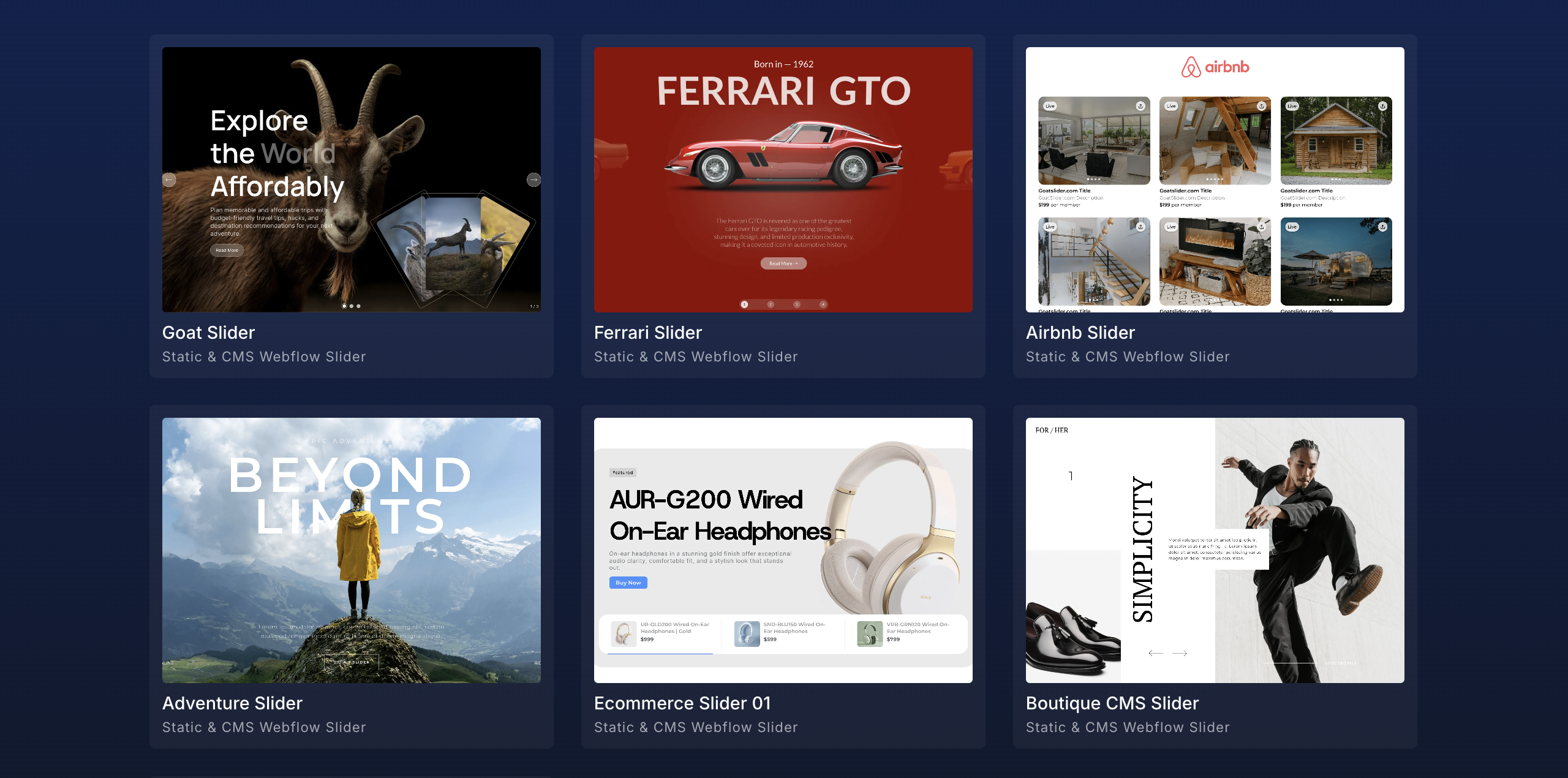
Goatslider exemplifies this category, providing a Webflow-native application specifically designed to address native slider limitations. Features like direct CMS integration, draggable carousels, custom counters, and an extensive template library expand what non-developers can achieve without touching code. For a deeper comparison of exactly where native sliders fall short and when third-party tools justify the switch, see our guide to Webflow native sliders vs third-party solutions.
Implementing no-code sliders follows predictable patterns regardless of specific tool selection. Understanding this general process helps you approach any slider project with confidence.
Effective implementation begins with planning before touching any tools. Sketch your intended slider layout, noting how many slides you need, what content each contains, and how users will navigate between them. Consider responsive behavior: how should the slider adapt for tablet and mobile viewports?
This planning phase prevents wasted effort from starting implementation before understanding requirements. Changes during planning cost nothing; changes during implementation cost time and frustration.
Prepare all slider content before beginning implementation. Gather images optimized for web display. Write headlines and body copy. Identify destination URLs for calls to action. Having content ready enables focused implementation without interruptions to track down missing assets.
For CMS-connected sliders, ensure your collection structure supports all required content fields. Add collection items with complete content before connecting the slider. This preparation reveals any structural issues before they complicate slider configuration.
With content prepared, visual configuration becomes the creative phase of implementation. Adjust slider dimensions to fit your layout. Configure spacing between elements. Apply colors that align with your brand system. Set typography to match site-wide standards.
No-code tools make this process visual and iterative. You see changes immediately as you make them. This immediate feedback loop enables experimentation that would be tedious with code-based approaches.
Beyond visual styling, slider behavior settings control user experience. Configure autoplay timing if you want slides to advance automatically. Set transition duration and easing for smooth animations. Enable or disable various navigation options based on your interaction design.
Test behavior settings across devices. Autoplay timing that feels comfortable on desktop may feel rushed on mobile where users need more time to read content. Touch interactions should feel responsive without being overly sensitive.
Non-developers encounter predictable challenges when implementing sliders. Knowing these challenges in advance helps you address them efficiently when they arise.
Sliders that look perfect on desktop often break on smaller screens. Images may overflow their containers. Text may become unreadably small. Navigation elements may overlap content.
Address responsive issues through systematic breakpoint testing. Webflow's responsive preview modes allow checking each breakpoint during development. Create specific style overrides for problematic breakpoints rather than attempting one-size-fits-all solutions.
Sliders with large images or many slides can impact page load performance. Non-developers sometimes overlook optimization, uploading full-resolution images directly from cameras or design software.
Optimize images before uploading to Webflow. Target file sizes under 200KB for most slider images, using compression tools that maintain visual quality. Consider whether all slides need to load initially or whether lazy loading would improve performance.
Connecting sliders to CMS collections enables dynamic content updates but introduces complexity. Understanding the binding process between collection fields and slider elements takes practice.
Start with simple CMS connections before attempting complex configurations. Connect a basic text field to a headline element. Verify the connection works before adding image bindings and additional fields. This incremental approach isolates problems when they occur.
As comfort with no-code sliders grows, advanced techniques become accessible. These approaches elevate slider implementations beyond basic functionality.
Sophisticated page designs sometimes incorporate multiple slider implementations serving different purposes. A hero slider might introduce the brand while a card carousel below showcases services. A testimonial slider in another section builds social proof. If you are weighing whether your layout needs a full-width slider or a multi-item carousel, our breakdown of carousel vs slider differences and when to use each will help you decide.
Each slider instance can use different configurations optimized for its specific purpose. The hero slider might autoplay with dramatic transitions while the testimonial carousel allows user-controlled navigation with subtle animations.
Some designs use sliders as primary page organization rather than supplementary content elements. Portfolio websites might present entire projects as slides users navigate through. Product pages might use sliders to organize information into digestible sections.
These slider-centric layouts require careful attention to navigation clarity and content hierarchy. Users must understand that sliding reveals additional content and how to access it.
Webflow's interaction system can enhance slider implementations with additional animation effects. Elements within slides can animate on slide entry. Parallax effects can create depth. Scroll-triggered interactions can control slider advancement.
These integrations remain accessible to non-developers through Webflow's visual interaction builder, though they require more experimentation to master than basic slider configuration.
Skill development with no-code sliders follows the same pattern as any design capability: practice builds proficiency. Start with simple implementations and progressively tackle more complex projects.
Begin with static content sliders using native Webflow components. Master the basics before introducing complexity. Next, explore third-party solutions like Goatslider to understand expanded capabilities. Then attempt CMS integration with dynamic content. Finally, experiment with advanced techniques combining multiple features.
This progression builds foundational understanding before introducing complexity. Each stage reinforces skills needed for subsequent stages.
Webflow University provides foundational training on native components. Third-party solution documentation covers specific tool features. Community forums offer peer support for troubleshooting specific challenges. YouTube tutorials demonstrate implementations you can follow along with.
Invest time in learning resources proportional to how frequently you build sliders. Occasional implementers need basic proficiency; those building sliders regularly benefit from deeper expertise.
The no-code revolution has made professional slider implementation accessible to anyone willing to invest time in learning available tools. The technical barriers that once required developer involvement have largely dissolved. What remains is design thinking, user experience consideration, and familiarity with capable tools that translate visual intentions into functional implementations.
Latest Insights
Dive into our blog to discover insightful articles covering a variety of topics tailored for SaaS platforms.

Transform your Webflow slider experience with Goat Slider.


Designed By @OwlsTech Service